The video question type enables respondents to record video or upload an existing video file as part of their survey response. It is useful for capturing visual evidence, demonstrations, environmental conditions, or any information that benefits from motion and audio together.
Basic XLSForm Specification
| type | name | label |
|---|---|---|
| video | demo_video | Please record a short demonstration |
For more details on the standard video question type, see the XLSForm specification (opens in a new tab).
Uses
Video questions are commonly used for:
- Documenting field conditions — road damage, infrastructure state, crop health
- Recording product demonstrations or procedural compliance checks
- Collecting video testimonials from respondents
- Capturing evidence that requires spatial context (e.g., the size and extent of a problem area)
- Before/after documentation for monitoring and evaluation surveys
Data format
Video files are stored as binary attachments:
- Format: MP4 or MOV (mobile recording)
- Naming:
{instanceID}-{fieldname}.mp4(or equivalent) - Storage: Uploaded to the server media folder and linked to the submission record
- Access: Playable and downloadable from the submission management interface
rtSurvey extensions
Maximum duration
Use the parameters column to limit the recording length:
| type | name | label | parameters |
|---|---|---|---|
| video | site_visit | Record the site conditions | max-duration=60 |
max-duration is in seconds. The recording stops automatically at the limit.
Quality / resolution
Control the recording resolution via parameters:
| type | name | label | parameters |
|---|---|---|---|
| video | evidence | Record video evidence | quality=low |
Supported values: low (faster upload), normal (default), high. Use low in areas with limited connectivity.
Upload existing video
On mobile, the respondent can choose to upload an existing video from the device gallery instead of recording a new one. This is enabled by default in the native camera/gallery integration.
Playback before submission
On mobile, the recorded clip can be reviewed before proceeding. No additional configuration is needed.
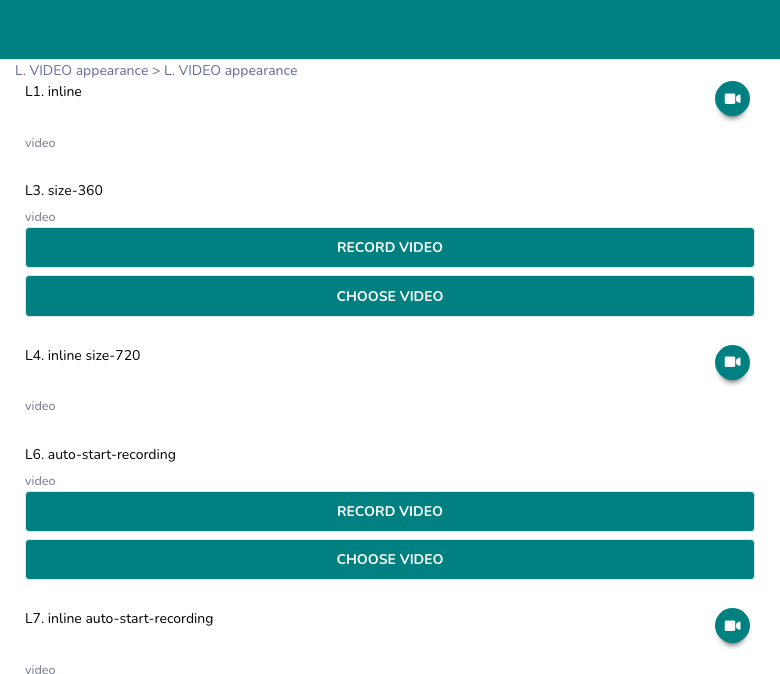
Inline button layout
Add inline to render the camera as a circular icon button next to the label instead of a full-width capture area.
| type  | name  | label        | appearance                              |
|-------|-------|--------------|----------------------------------------|
| video | clip  | Record video | inline display{right}                  |
| video | clip  | Record video | inline display{left, large}            |
| video | clip  | Record video | inline display{center, large, #0099FF} |
Button position — left, right (default), top, center, bottom
Button size — small (default), medium, large
Button color — add a hex color inside display{} to override the primary color:
inline display{right, large, #FF5500}Post-capture control — results{}:
| Appearance | Effect |
|---|---|
results{hide(capture)} | Hides the record button after a video is captured |
results{hide(review)} | Hides the playback thumbnail after capture |
results{hide(filename)} | Hides the filename and duration |
results{left} | Moves icon to the left after capture |
Example — hide record button, keep playback:
inline display{right} results{hide(capture)}thumbnail-square-[WxH] — fixed-size video preview
After capture, displays the video as a fixed-size inline player instead of full-width. Combine with inline for a compact layout.
inline display{right} thumbnail-square-[120x90]
inline display{center} thumbnail-square-[200x150]
Width and height are in pixels.
invisible auto-show — auto-open recorder
Hides the question widget from the layout but automatically opens the video recorder when the page loads.
invisible auto-show
inline invisible auto-show
Suppress the label
inline text-nolabel display{center, large}Example usage
Site inspection video with limit
| type | name | label | hint | parameters |
|---|---|---|---|---|
| video | site_video | Record the water point | Walk around the entire facility. Max 90 seconds. | max-duration=90 quality=normal |
Conditional video — only if damage is reported
| type | name | label | relevant | required |
|---|---|---|---|---|
| select_one yesno | damage_found | Was damage found? | ||
| video | damage_video | Record video of the damage | ${damage_found} = 'yes' | ${damage_found} = 'yes' |
Best Practices
- Set
max-duration— unrestricted video recordings can easily exceed 100 MB and fail to upload on weak connections. - Use
quality=lowfor monitoring surveys where visual evidence is required but fine detail is not — it cuts file size dramatically. - Write specific recording instructions in the
hintcolumn (e.g., "Walk around the entire building, hold camera steady"). - Consider whether video is necessary — a photo (
image) is usually sufficient for static evidence and produces much smaller files. - Test upload performance on the actual field network before deployment.
Limitations
- Video files are very large — a 1-minute video at normal quality is typically 20–60 MB depending on device.
- Uploading large video files requires a good network connection; consider requiring Wi-Fi sync for video-heavy forms.
- Not all web browsers support video recording via MediaRecorder — Chrome is the most reliable.
- Analysis of video responses is manual and time-consuming; use sparingly and only when video content adds unique value.