The integer question type collects whole numbers (no decimal places). It triggers a numeric keyboard on mobile and blocks decimal point entry. It supports the same appearance options as the text type for layout and formatting.
Basic XLSForm Specification
| type | name | label |
|---|---|---|
| integer | age | Age of respondent |
| integer | household_size | Number of people in household |
For the standard specification see the XLSForm documentation (opens in a new tab).
Appearance options
number-hspinner — horizontal spinner
Replaces the input with a horizontal − value + spinner. Tapping minus/plus decrements or increments the value by 1 (or a custom step).
number-hspinnerCustomize button shape and step using hspinner():
number-hspinner hspinner('left-small-square','right-small-square','5')Parameters: left button shape, right button shape, step value (defaults to 1 for integer).
Custom colors using colors():
number-hspinner colors(0099FF,FFFFFF,FF5500,FFFFFF)Four values in order: left-button background, left-button icon, right-button background, right-button icon.
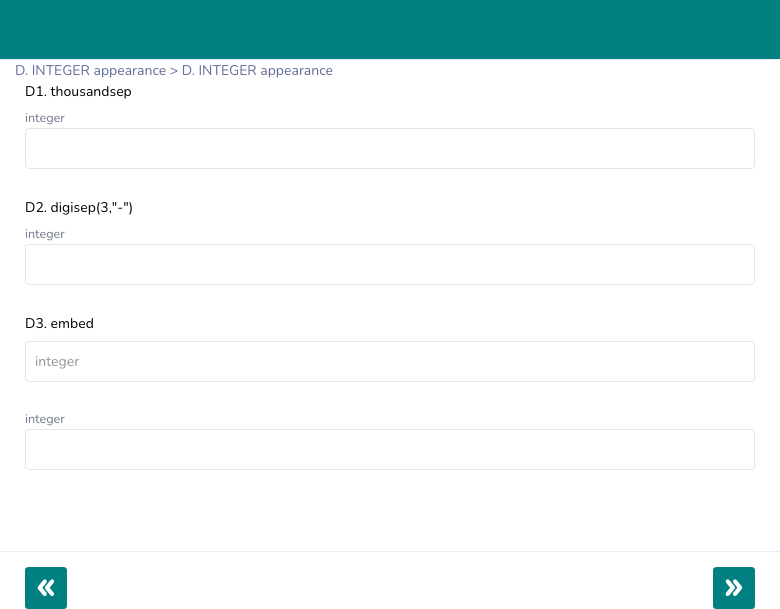
thousandsep — thousands separator
Formats the displayed number with comma grouping (e.g. 1,234,567). The raw number is stored without commas. Input type is switched to "text" to allow the formatted display.
thousandsepdigisep(n, "sep") — custom digit grouping
Groups digits into blocks of n separated by a custom separator. Useful for formatted IDs or reference codes that are numeric.
digisep(4,"-")      → 0912-3456-789
digisep(3," ")      → 012 345 678
Input type is switched to "text" when this appearance is active.
textonly — force text keyboard
Forces type="text" on the input element. This prevents browser number-input quirks (such as hiding leading zeros or adding spin arrows in desktop browsers) while still collecting a numeric value.
textonlyfloating_hint — hint floats as label
The hint text renders inside the input as a placeholder. When the user starts typing, it floats above the field as a label.
floating_hintembed — hint inside input boundary
Similar to floating_hint — the hint sits inside the input boundary when empty. It does not float when the user types.
embedtextpopup — modal dialog input
Tapping the field opens a modal dialog with a larger input instead of editing inline. Useful on small screens where a full-screen input is easier.
textpopupcharcount — live character counter
Displays a live (n) character count below the input, updated as the user types.
charcountprefix(expr) — prepend a prefix
Prepends a static or calculated string to the displayed value. The stored value does not include the prefix.
prefix('Item #')        → displays "Item #42", stores "42"
prefix(${code_prefix})  → dynamic prefix from another field
align_answer — input text alignment
Controls the horizontal alignment of the typed value inside the input.
align_answer = left
align_answer = right
align_answer = center
inputs{qrscan} — QR / barcode scan into field
Adds a QR code scan button next to the input. Opens the camera scanner and populates the field with the scanned numeric value.
inputs{qrscan}Appearance quick reference
| Appearance | Widget rendered |
|---|---|
| (none) | Number input (type="number") — numeric keyboard on mobile |
number-hspinner | Horizontal − value + spinner, step = 1 |
number-hspinner hspinner(...) | Spinner with custom button shape and step |
number-hspinner colors(...) | Spinner with custom button colors |
thousandsep | Comma-grouped number display |
digisep(n,"sep") | Custom digit grouping |
textonly | Force text keyboard |
floating_hint | Hint floats above field while typing |
embed | Hint inside input boundary |
textpopup | Tap to open modal dialog |
charcount | Live character count below input |
prefix(expr) | Prepend static or dynamic prefix |
align_answer = left/right/center | Input text alignment |
inputs{qrscan} | QR/barcode scan button |
Constraints and validation
Use constraints to enforce value ranges. Constraints in the constraint column are evaluated after every button press in number-hspinner mode, not just on blur.
| type | name | label | constraint | constraint_message |
|---|---|---|---|---|
| integer | age | Age | . > 0 and . <= 120 | Age must be between 1 and 120 |
| integer | year | Year built | . >= 1800 and . <= 2100 | Enter a valid year |
| integer | count | Number of items | . >= 0 | Cannot be negative |
Example — household survey
| type | name | label | appearance | constraint | constraint_message |
|---|---|---|---|---|---|
| integer | household_size | People in household | number-hspinner | . >= 1 and . <= 30 | Must be between 1 and 30 |
| integer | under_5 | Children under 5 | number-hspinner | . >= 0 and . <= ${household_size} | Cannot exceed household size |
| integer | year_built | Year house was built | textonly | . >= 1800 and . <= 2100 | Enter a valid year |
Best Practices
- Use
number-hspinnerfor small-range counts where clicking ± is faster than typing (e.g. number of children, score on a 1–10 scale). - Use
thousandsepwhen displaying large integers (population, income) so respondents can self-check the magnitude. - Use
textonlywhen browsers add unwanted number-input UI (spin arrows, touch scroll) that confuses respondents. - Enforce range constraints rather than relying on mobile keyboard type — keyboard enforcement is not universal.
Limitations
- Decimal point input is blocked — if you need fractional values, use the
decimaltype. number-hspinnervalidates theconstrainton every button press — avoid expensive constraints (e.g. complexif()chains) in spinner mode.thousandsepanddigisep()store the raw number without formatting — do not rely on the formatted display value in calculations.