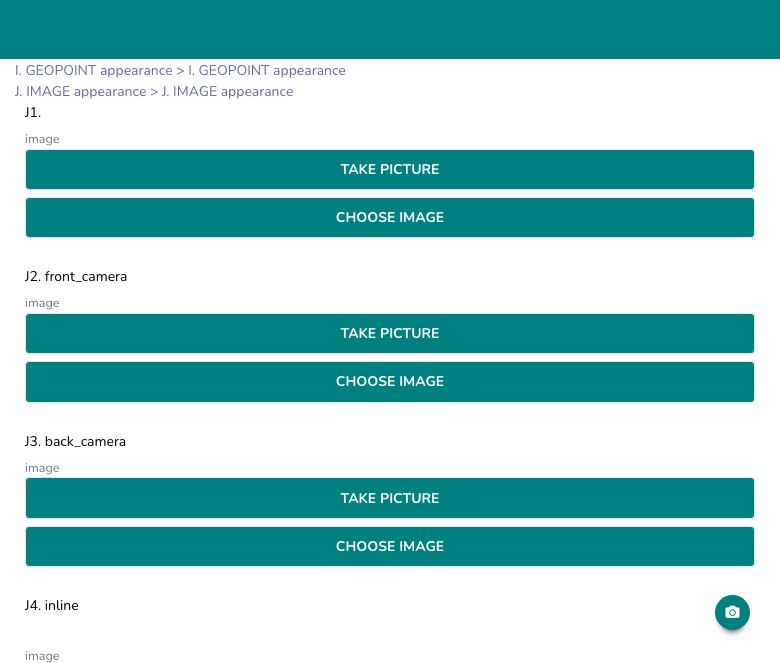
The image question type in XLSForms and rtSurvey enables respondents to capture and submit photos as part of their survey responses. This feature is particularly useful for collecting visual data, documenting observations, or providing evidence in field surveys.
Basic XLSForm Specification
| type | name | label |
|---|---|---|
| image | photo | Take a photo of the location |
For more details on the basic image question type, see the XLSForm specification (opens in a new tab).
Uses
Image questions are commonly used for:
- Documenting field conditions or observations
- Capturing visual evidence in research studies
- Collecting before-and-after photos in impact assessments
- Verifying the completion of tasks or presence at locations
- Gathering visual data for remote analysis
Best Practices
- Provide clear instructions on what should be photographed.
- Consider privacy implications and inform respondents about how their photos will be used.
- Be mindful of file sizes and storage limitations, especially for surveys in areas with limited internet connectivity.
- Ensure the device has sufficient storage space and camera permissions are granted.
Example Usage
Here's an example of how you might use an image question in a survey:
| type | name | label | hint |
|---|---|---|---|
| image | storefront | Take a photo of the store's entrance | Ensure the store name is clearly visible |
rtSurvey Extensions
Inline button layout
Add inline to the appearance column to render the camera as a circular icon button next to the label instead of a full-width capture area. Tapping it opens a modal.
| type  | name  | label        | appearance                          |
|-------|-------|--------------|-------------------------------------|
| image | photo | Take a photo | inline display{right}               |
| image | photo | Take a photo | inline display{center, large}       |
Button position — display{}:
| Value | Layout |
|---|---|
right (default) | Icon right of label |
left | Icon left of label |
top | Icon above label, centered |
center / bottom | Icon below label, centered |
Button size:
| Value | Size |
|---|---|
small (default) | Small circle |
medium | Medium circle |
large | Large circle |
Button color — add a hex color inside display{} to override the primary color:
inline display{right, large, #FF5500}
inline display{center, medium, #0099FF}
Post-capture control — results{}:
| Appearance | Effect |
|---|---|
results{hide(capture)} | Hides the camera button after a photo is taken |
results{hide(camera)} | Same as hide(capture) — alias for image type |
results{hide(review)} | Hides the thumbnail preview after capture |
results{hide(filename)} | Hides the filename shown after upload |
results{left} | Moves icon to the left after capture |
Example — large centered button, hide camera after capture:
inline display{center, large} results{hide(capture)}invisible auto-show — auto-open camera
Hides the question widget from the layout but automatically opens the camera when the page loads. Useful for embedding a silent capture step in a form flow.
invisible auto-show
inline invisible auto-show
Signature and drawing
| Appearance | Description |
|---|---|
signature | Full-screen signature pad modal |
signature display{quick} | Inline quick-draw signature pad — no modal |
draw | Freehand drawing canvas |
Watermark
Add a text or image watermark to captured photos:
watermark(text, "Survey ID: ${id}", bottom-right, 0.5)
watermark(file, logo.png, top-left, 1.0, 20%)
Suppress the label
inline text-nolabel display{center, large}Data Handling
Images collected through this question type are typically:
- Saved in a common image format (e.g., JPG, PNG)
- Stored alongside other survey data, often in a separate media folder
- Accessible for viewing and analysis through the survey management platform
Considerations for Analysis
When using image questions, consider:
- How the images will be analyzed (e.g., manual review, automated image analysis)
- The additional storage space required for image files
- Privacy and data protection measures for storing and handling photos
- Potential need for image editing or organization tools in the analysis phase
Limitations
- Image files can be large, which may impact data transfer and storage.
- Not all devices may have high-quality cameras or sufficient storage space.
- Analyzing large numbers of images can be time-consuming.
- There may be privacy concerns when capturing images, especially in public spaces.