The text question type collects a free-text string. It is the most flexible input type and supports a large number of appearance variants that change how the input is rendered — from a simple single-line field to speech-to-text, popup dialogs, rich text editors, and numeric spinners.
Basic XLSForm Specification
| type | name | label |
|---|---|---|
| text | respondent_name | Full name of respondent |
| text | address | Home address |
For the standard specification see the XLSForm documentation (opens in a new tab).
Layout modes
Default — single-line input
No appearance needed. Renders a standard <input type="text"> field.
multiline — textarea
Renders a multi-line textarea. The user can expand it by typing; it auto-grows.
multilineControl row height by appending [initRows, maxRows]:
multiline [3,8]     → starts at 3 rows, expands up to 8
multiline [5]       → fixed at 5 rows
Default is 1 row with no max. Shift+Enter inserts a line break; Enter advances to the next question.
floating_hint — hint floats as label
The hint text renders inside the input field as a placeholder. When the user starts typing, the hint floats up above the field as a label.
floating_hintembed — hint inside the input
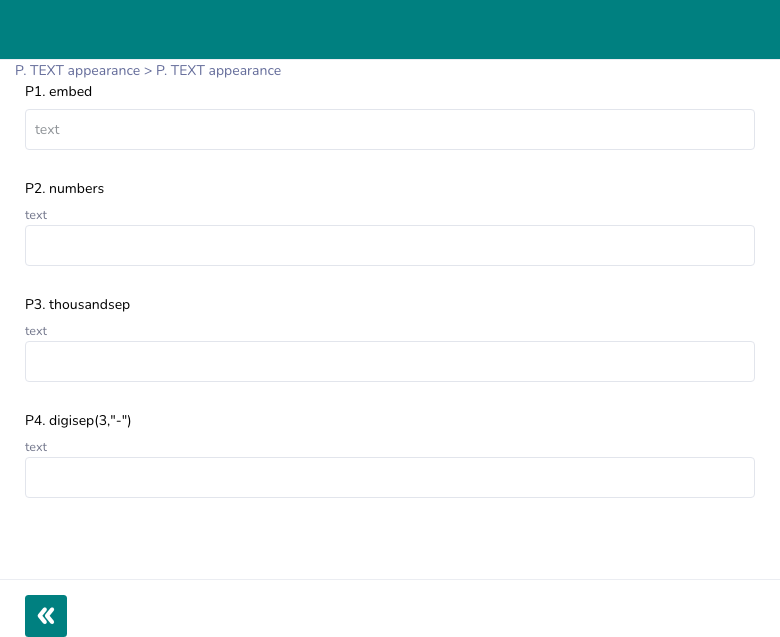
Similar to floating_hint — the hint renders inside the input boundary when the field is empty. Does not float when typing.
embedtextpopup — modal dialog input
Tapping the field opens a SweetAlert modal dialog with a large input instead of editing inline. Useful on mobile to give more screen space for typing.
textpopuprichtext — WYSIWYG editor
Renders a full rich-text editor (Monaco / Draft.js). The respondent can bold, italicize, add lists, etc. The stored value is HTML.
richtext
richtext(30%)       → editor height 30% of viewport
charcount — live character counter
Adds a (n) character count display below the input, updating as the user types.
charcount
multiline charcount
Numeric input variants
These appearances work on text type to collect numbers with special formatting or interaction patterns.
numbers — numeric keyboard
Forces the HTML input type to number, triggering a numeric keyboard on mobile.
numbersthousandsep — thousands separator
Displays the number with comma grouping (e.g. 1,234,567) while storing the raw number. Input type is forced to text to allow the comma display.
thousandsepdigisep(n, "sep") — custom digit grouping
Groups digits into blocks of n separated by a custom character. Useful for phone numbers, ID numbers, etc.
digisep(4,"-")      → 0912-3456-789
digisep(3," ")      → 012 345 678
number-hspinner — horizontal spinner
Replaces the input with a horizontal − value + spinner. The user taps the minus/plus buttons to decrement or increment the value. Works with int and decimal types.
number-hspinnerCustomize button appearance using hspinner():
number-hspinner hspinner('left-small-square','right-small-square','1')Parameters: left button shape, right button shape, step value.
Custom colors using colors():
number-hspinner colors(0099FF,FFFFFF,FF5500,FFFFFF)Four color values: left-bg, left-icon, right-bg, right-icon.
prefix(expr) — prepend a prefix
Prepends a calculated or static string to the displayed value. The stored value does not include the prefix.
prefix('USD ')      → displays "USD 100", stores "100"
prefix(${currency}) → dynamic prefix from another field
textonly — force text input type
Forces type="text" even when the field is integer or decimal. Useful to avoid browser number-input quirks.
textonlyText transformation
These appearances auto-transform the value as the user types.
| Appearance | Effect | Example input → stored |
|---|---|---|
upper | Converts to UPPERCASE | hello → HELLO |
lower | Converts to lowercase | HELLO → hello |
proper | Converts to Proper Case | john doe → John Doe |
Input capture helpers
inputs{stt} — speech to text
Adds a microphone button next to the input. Tapping it starts browser speech recognition (Web Speech API). The transcribed text is appended to the field.
inputs{stt}Not supported on Safari. Requires microphone permission.
inputs{qrscan} — QR / barcode scanner
Adds a QR code scan button next to the input. Opens the camera scanner modal and populates the field with the scanned value.
inputs{qrscan}Tokenize (append scanned values instead of replacing):
inputs{qrscan} append(${separator})inputs{stt,qrscan} — both speech and scan
Renders both the microphone and QR scan buttons side by side.
inputs{stt,qrscan}
inputs{qrscan,stt}
Selection-linked variants
These appearances link a text field to a select_one choice list, letting the user either pick from the list or type freely.
selection_one_hide — dropdown picker
Renders the text input with a dropdown arrow. Tapping the arrow shows choices from the linked search() list. Selecting a choice fills the input and locks it (shows ✕ to clear).
selection_one_hideselection_one_show — radio list below
Renders the text input with radio buttons below it. Selecting a radio fills and locks the input.
selection_one_showBoth variants require a search() expression in the calculation column to define the choice list.
Answer alignment
Controls horizontal alignment of the typed text within the input.
align_answer = left
align_answer = right
align_answer = center
Time input widget (inline clock)
rtSurvey extends text with a clock picker widget. These appearances display a clock icon the enumerator taps to select a time value. The value is stored as plain text in the chosen format.
Appearances
| Appearance | Description |
|---|---|
inline | Clock icon button next to the field, opens modal |
inline-onlyresult | Clock icon disappears after selection |
inline-1line | Compact single-row time spinner |
inline colors("RRGGBB") | Clock icon with custom color |
inline-1line colors("RRGGBB","RRGGBB") | Spinner with two accent colors |
Format tokens
Append -[format] to control which time components are shown and stored:
| Format | Displays |
|---|---|
inline-[%H:%M] | Hours : Minutes (24h) |
inline-[%h:%M] | Hours : Minutes (12h) |
inline-[%H:%M:%S] | Hours : Minutes : Seconds (24h) |
inline-[%M:%S] | Minutes : Seconds |
inline-[%H:%M:%3] | Hours : Minutes : Milliseconds |
inline-[%S] | Seconds only |
inline-[%3] | Milliseconds only |
inline-[%H] | Hours only (24h) |
Button position with display{}
Same as other inline types — controls position and size of the clock button:
inline display{right}
inline display{center, large}
inline-onlyresult display{left, medium, #0099FF}
Appearance quick reference
| Appearance | Widget rendered |
|---|---|
| (none) | Single-line text input |
multiline | Textarea |
multiline [n,m] | Textarea with init/max row control |
floating_hint | Hint floats as label when typing |
embed | Hint inside input boundary |
textpopup | Tap to open modal dialog |
richtext / richtext(height) | WYSIWYG rich text editor |
charcount | Live character count below input |
numbers | Numeric keyboard |
thousandsep | Thousands-comma formatting |
digisep(n,"sep") | Custom digit grouping |
number-hspinner | Horizontal − value + spinner |
prefix(expr) | Prepend static or calculated prefix |
upper / lower / proper | Auto case transformation |
inputs{stt} | Speech-to-text microphone button |
inputs{qrscan} | QR/barcode scan button |
inputs{stt,qrscan} | Both mic and scan buttons |
selection_one_hide | Dropdown picker from choice list |
selection_one_show | Radio list below input |
align_answer = left/right/center | Answer text alignment |
inline-[%H:%M] | Clock picker — time collection |
inline-1line | Compact time spinner |
Constraints and validation
Apply constraints to enforce format, length, or pattern:
| type | name | label | constraint | constraint_message |
|---|---|---|---|---|
| text | name | Full name | string-length(.) >= 2 | At least 2 characters required |
| text | code | Reference code | regex(., '^[A-Z]{2}[0-9]{4}$') | 2 uppercase letters + 4 digits |
| text | phone | Phone number | regex(., '^[0-9]{9,15}$') | Enter a valid phone number |
Best Practices
- Use more specific types (
integer,decimal,date) when the data has a known structure — this prevents invalid entries. - Use
multiline [3,8]for open-ended questions to give respondents room to write without overwhelming the screen. - Use
thousandsepordigisep()instead ofnumberswhen you need formatted display —numbersalone only changes the keyboard. - Use
inputs{qrscan}to eliminate manual typing errors for codes, IDs, and serial numbers. - Use
floating_hintwhen the hint is important context that should remain visible while typing — standard hints disappear from view on small screens. - Use
charcounton questions with length constraints so respondents can self-monitor.
Limitations
inputs{stt}requires a browser that supports the Web Speech API. Chrome is the most reliable; Safari is not supported.richtextstores HTML — plan for HTML stripping or sanitization in your analysis pipeline if plain text is expected.selection_one_hideandselection_one_showrequire asearch()expression and are only supported on the web client.number-hspinnervalidates against theconstraintcolumn on each button press, not just on blur — design constraints accordingly.