The barcode question type captures a code value by scanning a QR code or barcode with the device camera. The scanner modal also includes a manual text input as a fallback when scanning is not possible.
Basic XLSForm Specification
| type | name | label |
|---|---|---|
| barcode | product_code | Scan the product barcode |
| barcode | ticket_id | Scan the ticket |
For the standard specification see the XLSForm documentation (opens in a new tab).
Supported formats
rtSurvey supports QR codes and standard 1D barcodes via the device camera, including:
- QR Code
- UPC-A, UPC-E
- EAN-8, EAN-13
- Code 39, Code 128
- ITF, Codabar
Default layout
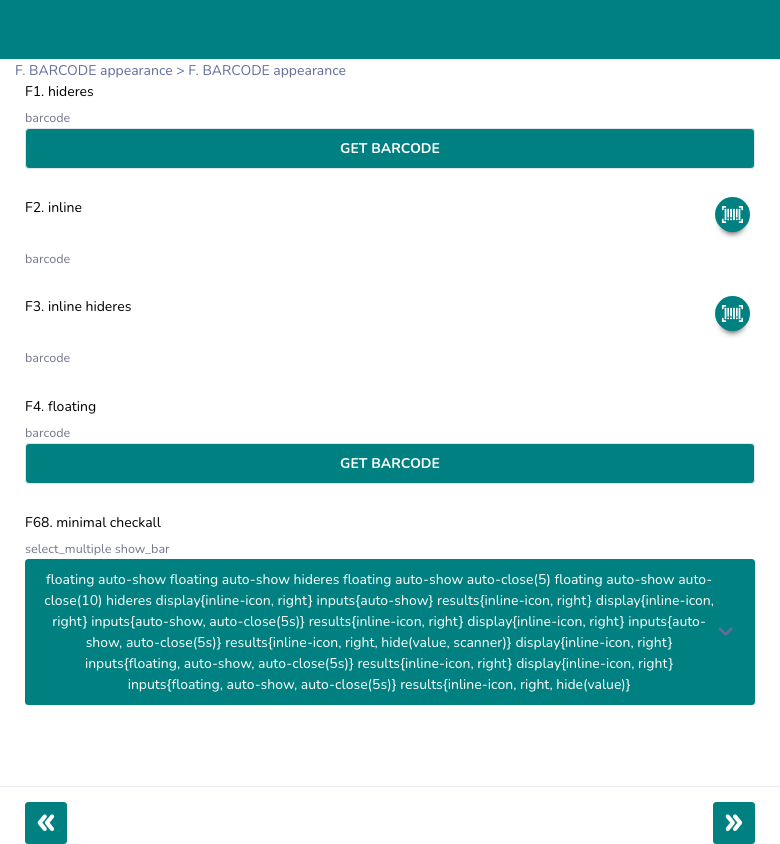
With no appearance set, the question renders a full-width "GET BARCODE" button. Tapping it opens the scanner modal. After a successful scan, the button changes to "REPLACE BARCODE" and the scanned value appears below as a clickable link.
Scanner modal
The scanner modal always includes:
- Live camera view — scans automatically on detection; the modal closes after a successful scan.
- Manual text input — a text field at the bottom where the enumerator can type the code if scanning fails.
- Done button — submits the manually typed value.
When the device camera is unavailable, the modal falls back to an "Upload an image" option — the enumerator can submit a photo of the barcode for decoding.
Inline button layout
Add inline to render the scanner as a circular icon button next to the label instead of a full-width button.
| type    | name | label     | appearance                              |
|---------|------|-----------|----------------------------------------|
| barcode | code | Scan item | inline display{right}                  |
| barcode | code | Scan item | inline display{left, large}            |
| barcode | code | Scan item | inline display{center, large, #0099FF} |
Button position — left, right (default), top, center, bottom
Button size — small (default), medium, large
Button color — add a hex color inside display{} to override the primary color:
inline display{right, large, #FF5500}Post-capture control — results{}:
| Appearance | Effect |
|---|---|
results{hide(scanner)} | Hides the scan button after a value is captured |
results{hide(review)} | Hides the scanned value link after capture |
results{hide(value)} | Hides the scanned value text display |
results{left} | Moves icon to the left after capture |
Example — hide scanner after first scan:
inline display{center, large} results{hide(scanner)}inputs{auto-close(N)} — auto-close scanner
Automatically closes the scanner modal after N seconds if no barcode is detected. A live countdown timer is shown inside the modal.
inputs{auto-close(10)}     → closes after 10 seconds
inputs{auto-close(5)}      → closes after 5 seconds
Combine with inline:
inline display{right} inputs{auto-close(10)}inputs{floating} — floating draggable scanner
Shows a minimize button (compress icon ⊞) in the scanner modal header. Tapping it collapses the scanner to a small floating circular icon that can be dragged anywhere on the screen. Tapping the floating icon re-opens the scanner.
inputs{floating}
inline display{right} inputs{floating}
Useful in workflows where the enumerator needs to see the form while the scanner is active (e.g., scanning items in a list).
invisible auto-show — auto-open scanner
Hides the question widget from the layout but automatically opens the scanner when the page loads. Useful for embedding a silent scan step in the form flow.
invisible auto-show
inline invisible auto-show
In repeat groups
When barcode is inside a begin repeat group, a successful scan automatically advances to the next repeat instance after the value is recorded. This enables rapid sequential scanning without the enumerator tapping "Add" between items.
Suppress the label
inline text-nolabel display{center, large}Example usage
Inventory scan
| type | name | label | appearance | required |
|---|---|---|---|---|
| barcode | item_code | Scan item barcode | inline display{right} | yes |
| integer | quantity | Quantity | yes | |
| note | confirm | Item: ${item_code} — Qty: ${quantity} |
Rapid multi-item scan (repeat group)
| type | name | label | appearance |
|---|---|---|---|
| begin repeat | items | ||
| barcode | code | Scan next item | inline display{right} inputs{auto-close(8)} |
| end repeat | items |
Silent auto-scan on page load
| type | name | label | appearance |
|---|---|---|---|
| barcode | entry_code | invisible auto-show |
Best Practices
- Use
inputs{auto-close(N)}to prevent the scanner from staying open indefinitely — pick a value that gives enumerators enough time to position the barcode (8–15 seconds is typical). - Use
inputs{floating}when the form needs to stay visible while scanning (e.g., scanning from a list where the enumerator cross-references a visible field). - Place the barcode question inside a repeat group for rapid sequential scanning — automatic repeat advancement eliminates the manual "Add" step.
- Always include the
hintcolumn with positioning instructions (e.g., "Hold the barcode within 10–30 cm of the camera, in good light"). - The manual text input in the scanner modal is always available — train enumerators to use it as a fallback for damaged or dirty barcodes.
Limitations
- Scanning accuracy depends on camera quality, lighting, and barcode condition — damaged or low-contrast codes may not scan reliably.
- The scanner uses the rear (environment-facing) camera; devices without a rear camera fall back to the image upload option.
invisible auto-showopens only on the first page load; navigating back to the page does not re-trigger the auto-open.