After signing in, the rtSurvey home screen gives you quick access to all core features. Your name, organization, and app version are displayed at the top.
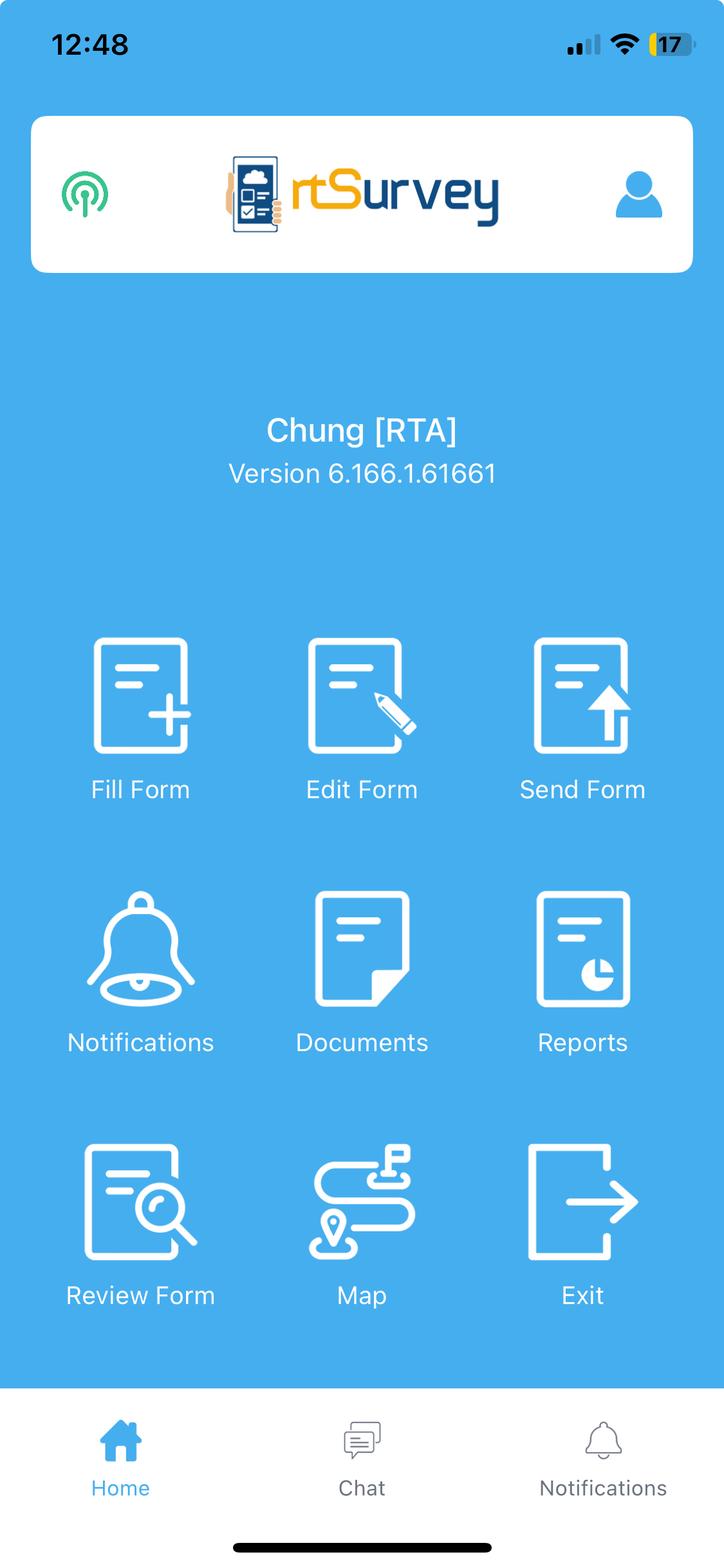
Fill Form
Access blank survey forms assigned to you. Forms are downloaded automatically — no manual retrieval needed. You can fill forms offline and sync when connectivity is restored.
Edit Form
Manage survey instances across three tabs:
- Saved — Resume incomplete forms saved on your device.
- Returned — Edit forms that were previously submitted and sent back for correction.
- Forwarded — Access forms that originated on another device and were forwarded to you.
Send Form
Submit completed forms to the server. Data is transmitted in real time, making it immediately available for review and analysis.
Notifications
View notices and updates pushed from the server, such as new assignments, submission confirmations, or project announcements.
Documents
Access documents shared by administrators or project managers — reference materials, instructions, or attachments related to your survey project.
Reports
View analytical reports sent from the server directly on your device.
Review Form
Inspect finalized survey instances across four tabs:
- Finalized — Completed forms not yet submitted.
- Sent — Forms successfully submitted to the server.
- Transferred — Forms moved to another device.
- Received — Forms originally created on another device and transferred to yours.
All instances are view-only by default. Edit access can be requested and approved by an administrator or project manager.
Map
View a map showing the GPS location recorded for each survey submission. Useful for verifying field coverage and spotting geographic patterns.
Exit
Close the app while staying signed in. Reopening the app resumes your session without requiring you to log in again.