The rtSurvey app connects to a project server and authenticates via Single Sign-On (SSO). No username/password entry is required — authentication is handled entirely through your organization's SSO provider.
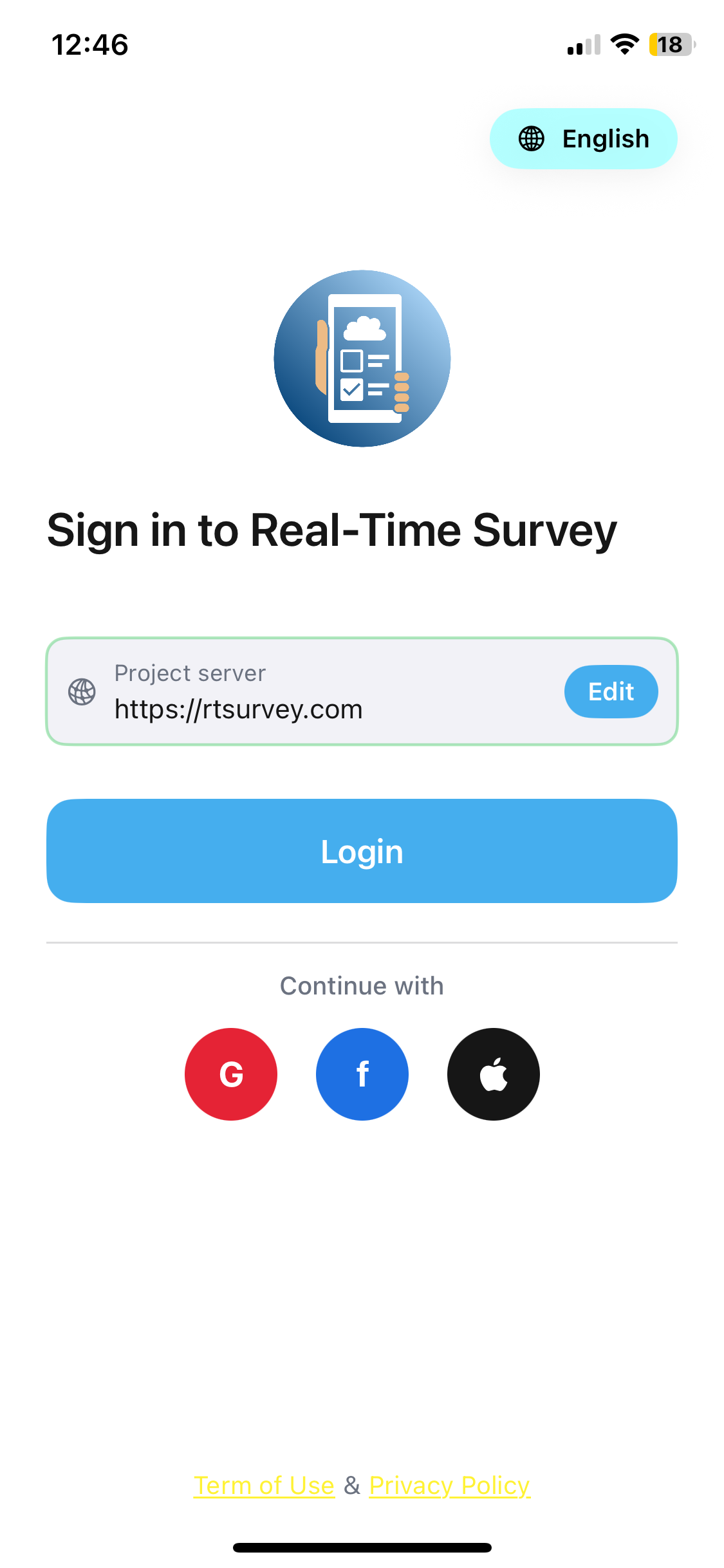
Setting the Project Server
The login screen displays the currently configured Project server URL. To change it:
- Tap Edit next to the server URL.
- Enter your organization's server address (e.g.
https://your-server.com). - Confirm the change.
The app will save this server for future sessions.
Signing In
Once the correct server is set, tap Login. You will be redirected to your organization's SSO login page.
rtSurvey also supports signing in via:
- Apple
Select the provider your organization uses. After successful authentication you will be taken directly to the app home screen.
Troubleshooting
| Issue | Action |
|---|---|
| Cannot reach the server | Check your internet connection and confirm the server URL is correct |
| SSO page does not load | Ensure the server address includes https:// and try again |
| Access denied after login | Contact your administrator — your account may not yet be provisioned |
| App crashes on login | Force-close the app, reopen it, and try again |